This guide will go through the basics of using the college e-mail system, including how to access your e-mails, create new e-mails, attach documents and mark your e-mails as high priority.
To access e-mail, first log into your user account, next go to Start>Outlook 2007 this will open the e-mail application.

To open e-mails in your inbox (where your e-mails are stored), click on the inbox icon on the left (1.) This will display your inbox, to open a message, double click it (2.) and it will open in the preview pane on the right (3.)

Sending a new e-mail
To send a new e-mail, first go to new > mail message (4.) this will open a new message window as shown below (5.).
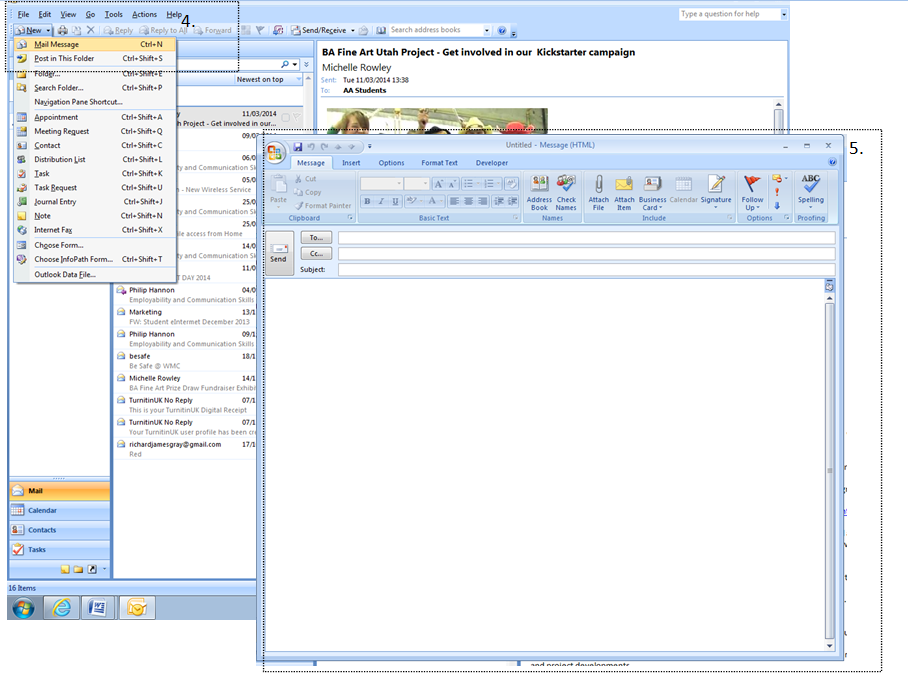
Adding a contact
To add a contact to the e-mail, click on the To… button and your contact list will appear on screen for you to select who you would like to send the message to, from here you can also chose who you would like to send a copy of the e-mail to. This is useful if you would like somebody to witness your communication between yourself and the recipient. To add a contact to the e-mail select their name from your contact list and then click the To.. button, you can do the same to add CC (carbon copy) or Bcc. (6.) after selecting who you would like to send the message to, click OK and you will return to the new message window and the recipient and cc and bcc (if selected) will be shown at the top of the message window.

Adding an attachment
Once you have selected who you wish to send the message to you can proceed to write your message in the box below, If you wish you can also send an attachment with your e-mail such as a document or an image. To do this, click on the attach file icon in the toolbar (7.) and an explorer window will open, in this window you can locate the file you wish to attach to the e-mail and then click insert to attach it to the e-mail . (8.)

Sending and send priority
Once the attachment has been attached to the e-mail the user can either send their message to the intended recipients by clicking on the send button (9.), or they can first mark their message as urgent by clicking on the high priority button first. (10.)

You’re all set!
 richtechguide