When you are unable to read or respond to E-mails, such as a scheduled holiday or you want a quiet weekend, you can set up an out of office feature that allows an automatic response to be sent to the person who sent you the e-mail. You can set this up so that it also forwards the e-mail to somebody who is available to respond to the e-mail.
To set up out of office, open outlook and go to tools> out of office assistant.

This will open the out of office assistant from here you can select whether you are in or out of the office. If you select out of office, the out of office system will be in effect. Here you can enter your auto reply. This is the message that will automatically be sent to anybody that sends you an e-mail while your status is set to out of the office.
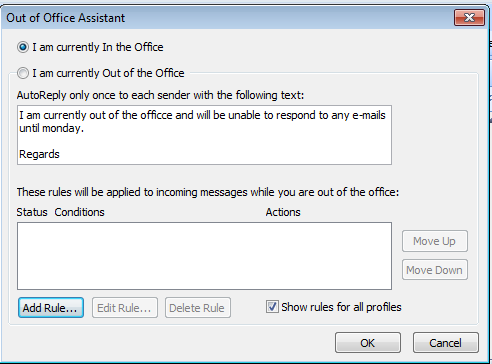
You can add rules so that the out of office system will run for a set number of days, to do this you must add a new rule. To do this click on Add Rule…
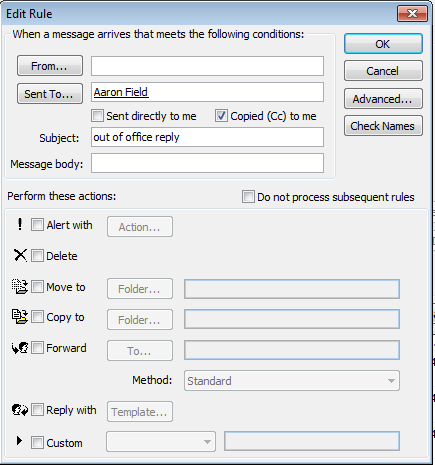
From this window you can add the rules to your out of office system. to select how long out of office is active for you can click advanced button then the next windows appears. From here you can tick the box that says from and to and select the dates that you want out of office to run from. Then click OK to save the settings.

If you have selected that you will be out of the office for a select period of time, you can choose to forward e-mails from certain people to other people in you address book. This could be useful if you are expecting an e-mail during the time that you are away, the important message can then be sent to somebody who can answer the e-mail for you. To do this click the from button and select the person that you are expecting to receive an e-mail from. Next click the send to button and chose the person you wish to forward this e-mail to whilst you are away.
Once done click OK to close the wizard and out of office will activate during the times you have set.




 richtechguide